Reporting Fraud and Abuse
Overview - The Report Fraud and Abuse function allows the user to report, via a form, any incidents of Medicaid fraud (including fraudulent emails) or abuse of the Medicaid system. The user may be a provider, recipient, or other concerned citizen.
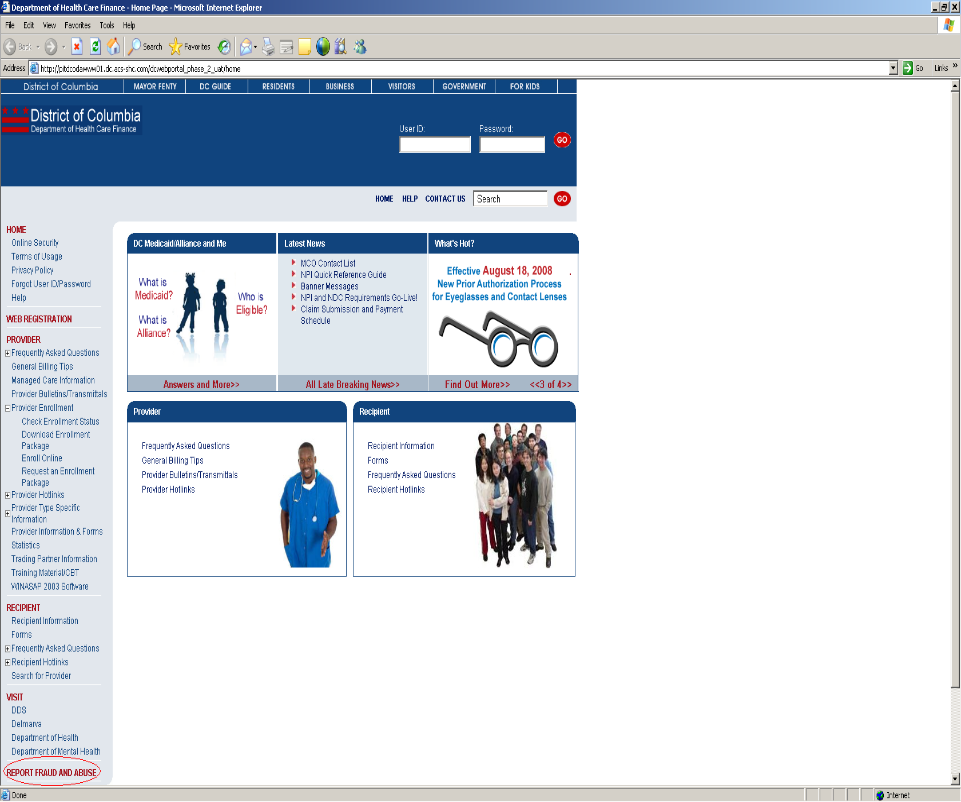
Home Page – Report Fraud and Abuse: Web Page Image
Figure 135: Home Page – Report Fraud and Abuse Web Page Image
Reporting Fraud and Abuse: Web Page Details
- On the left side of the Home Page in the navigation bar, the user should click Report Fraud and Abuse in the lower left corner.
- The Reporting Fraud and Abuse web page will be displayed.
Figure 136: Reporting Fraud and Abuse Web Page Image
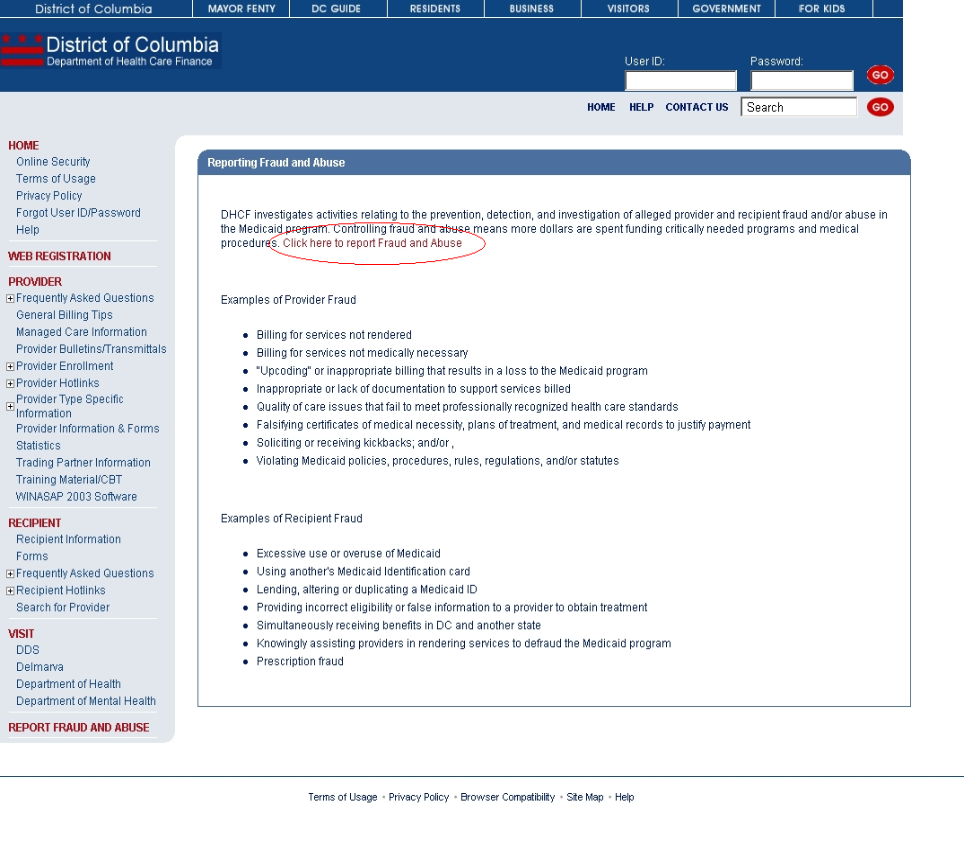
- The user should read the explanation of fraud and abuse as well as review the examples of provider and recipient fraud.
- The user should click the link, Click here to report Fraud and Abuse, to open the Fraud and Abuse Complaint Form.
- The Fraud and Abuse Complaint Form web page will be displayed.
Figure 137: Fraud and Abuse Complaint Form Web Page Image
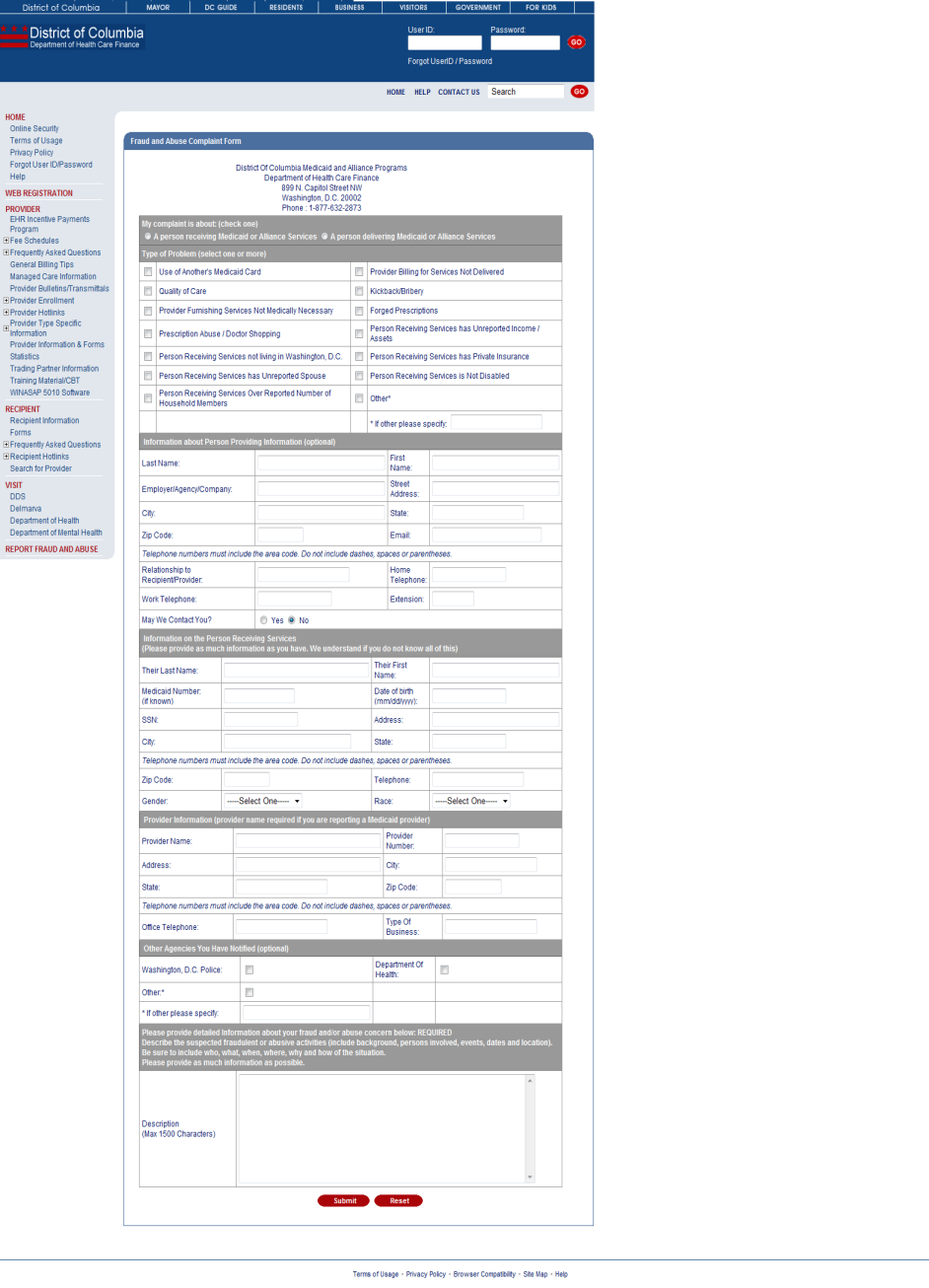
- The user should begin at the top of the complaint form and complete all required information.
- If the user has completed a portion of the form and wishes to begin anew, then the user should click Reset located at the bottom of the web page to clear all fields on the complaint form.
- Once the user has completed all required portions of the complaint form, then the user should click Submit located at the bottom of the web page. An error message will be displayed if the user has not completed any required information.
- Each of the complaint form sections are explained in detail below.
- From the Home Page, the provider should log into the web portal with their User ID and password. This will give the provider access to the secure functions.
- My complaint is about (check one) – REQUIRED
- The user must indicate whether the complaint is about a recipient (A person receiving Medicaid or Alliance Services) or a provider (A person delivering Medicaid or Alliance Services).
- The user may not select more than one type of complaint per form. That is to say, the user may only submit a recipient complaint or a provider complaint at one time.
- Should the user click Submit without choosing a complaint type, then the error message, Please check one of the Complaint Types, will be displayed. The user should click OK in the error message box and then select a complaint type.
- Type of Problem (select one or more) - REQUIRED
- The user must indicate at least one type of problem for the complaint.
- Should the user select the problem type Other*, then the user will be required to enter text describing the problem type in the box labeled, *If other please specify.
- If the user chooses Other*, does not enter any text, and clicks Submit, then the error message, Please enter Other Problem, will be displayed. The user should click OK in the error message box and then enter text describing the problem type.
- Should the user click Submit without choosing a problem type, then the error message, Select at least one Type of Problem, will be displayed. The user should click OK in the error message box and then select at least one problem type.
- Information about Person Providing Information (optional) – NOT REQUIRED
- The user may choose to enter personal information. All fields in this section are optional.
- If the user chooses to enter personal information, the user should be alerted that the default option for May We Contact You is No. If the user wishes to be contacted, then the user should select Yes before clicking Submit.
- If the user enters either Work Telephone or Home Telephone, then the user must enter 10 numeric characters. Should the user enter non-numeric characters or less than 10 numeric characters for these fields, then the error messages, Please enter a valid 10 digit Work Telephone or Please enter a valid 10 digit Home Telephone are displayed respectively. The user should click OK in the error message box and then enter a valid 10 digit telephone number.
- If the user enters Zip Code, then the user must enter 5 numeric characters. Should the user enter non-numeric characters or less than 5 numeric characters, then the error message, Please enter a valid 5 digit Zip Code is displayed. The user should click OK in the error message box and then enter a valid 5 digit zip code.
- Information on the Person Receiving Services – CONDITIONALLY REQUIRED
- If the user has selected A person receiving Medicaid or Alliance Services as the complaint type, then the user is required to submit at least one of the following: Their Last Name and Their First Name,or Medicaid Number,or SSN. If the user clicks Submit without entering at least one of these three fields, then the error message, Please enter at least one of the following Their Last Name & Their First Name Medicaid Number SSN, will be displayed. The user should click OK in the error message box and then enter one of the required fields.
- If the user chooses to enter the Medicaid Number, then the user must enter numeric characters. Should the user enter non-numeric characters, then the error message, Please enter a valid Medicaid Number, will be displayed. The user should click OK in the error message box and then enter a numeric Medicaid Number.
- If the user chooses to enter the SSN, then the user must enter 9 numeric characters. Should the user enter non-numeric characters or less than 9 numeric characters, then the error message, Please enter a valid 9 digit SSN, will be displayed. The user should click OK in the error message box and then enter a valid 9 digit SSN.
- If the user chooses to enter the Date of Birth, then the user must enter a date of birth in the format mm/dd/yyyy. Should the user enter a date of birth that is not in the format mm/dd/yyyy, then the error message, Please enter Date of Birth in mm/dd/yyyy format, will be displayed. The user should click OK in the error message box and then enter a date of birth in the mm/dd/yyyy format.
- Provider Information – CONDITIONALLY REQUIRED
- If the user has selected A person delivering Medicaid or Alliance Services as the complaint type, then the user is required to submit at least the Provider Name. If the user clicks Submit without entering the name of the provider, then the error message, Please enter Provider Name, will be displayed. The user should click OK in the error message box and then enter the provider’s name.
- If the user chooses to enter the Provider Number, then the user must enter 9 numeric characters. Should the user enter non-numeric characters or less than 9 numeric characters, then the error message, Please enter a valid 9 digit Provider Number, will be displayed. The user should click OK in the error message box and then enter a valid 9 digit provider number.
- If the user enters Office Telephone, then the user must enter 10 numeric characters. Should the user enter non-numeric characters or less than 10 numeric characters, then the error messages, Please enter a valid 10 digit Telephone is displayed. The user should click OK in the error message box and then enter a valid 10 digit telephone number.
- If the user enters Zip Code, then the user must enter 5 numeric characters. Should the user enter non-numeric characters or less than 5 numeric characters, then the error message, Please enter a valid 5 digit Zip Code is displayed. The user should click OK in the error message box and then enter a valid 5 digit zip code.
- Other Agencies You have Notified – NOT REQUIRED
- The user may choose to indicate other agencies that he/she has notified of the fraud and abuse complaint. All fields in this section are optional.
- The user may select more than one agency.
- Should the user select the agency Other*, then the user will be required to enter text describing the agency in the box labeled, *If other please specify.
- If the user chooses Other*, does not enter any text, and clicks Submit, then the error message, Please enter Other Agency Name, will be displayed. The user should click OK in the error message box and then enter text describing the agency.
- Description – REQUIRED
- The user must enter some text describing the suspected fraudulent or abusive activities.